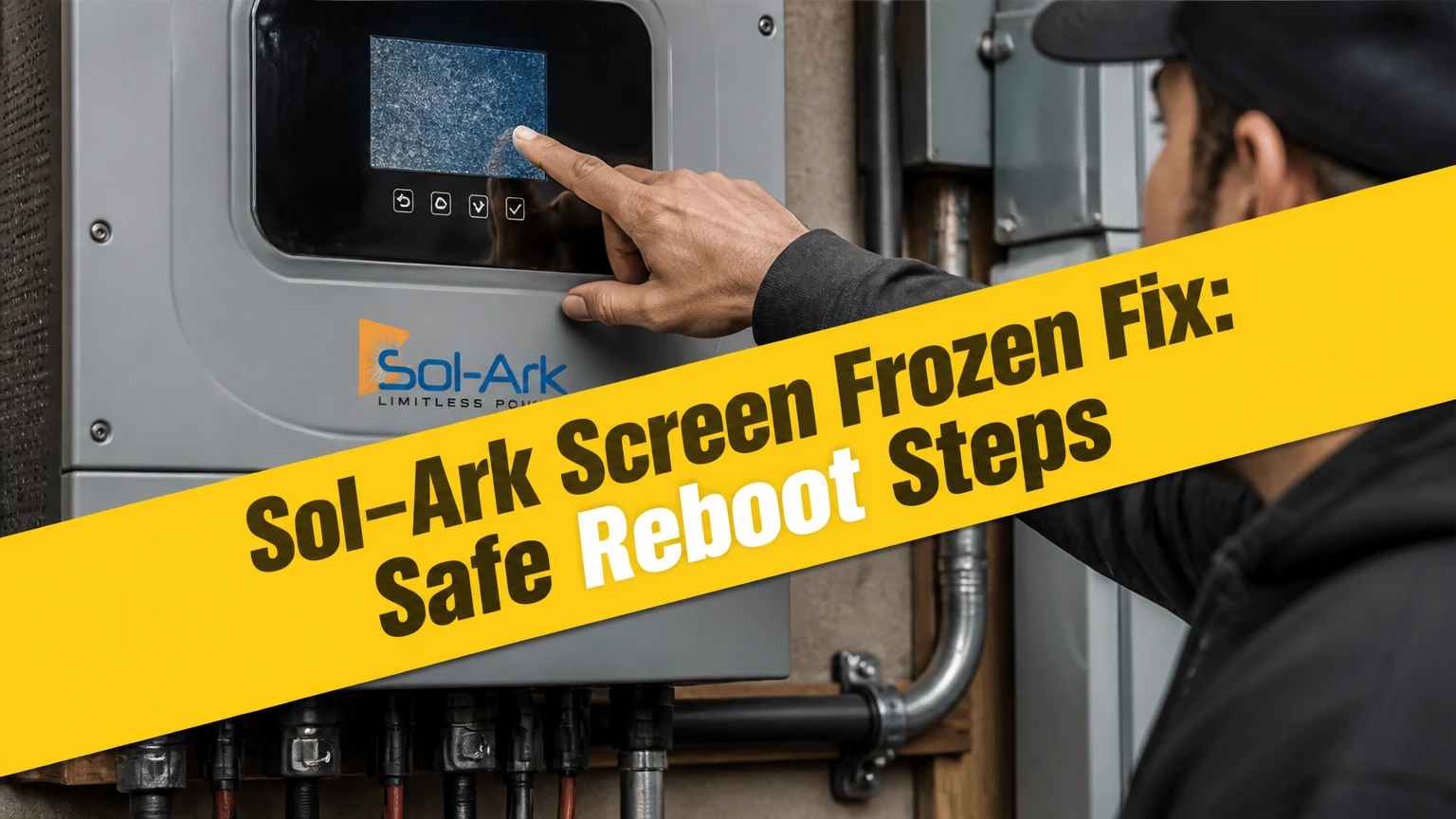
The safest Sol-Ark screen frozen fix is a controlled, complete power reset performed according to the inverter and battery manuals. Shut down connected sources using the installed disconnects, wait until the display and status indicators are fully inactive, then restart in the manufacturer-specified order. Do not open the inverter enclosure.
Key Facts
A frozen Sol-Ark LCD does not prove that the inverter has stopped producing or transferring power.
A genuine reset must account for grid, load, photovoltaic, and battery power sources.
Three to five minutes is a practical waiting interval, but dark indicators and the manual’s instructions are better confirmation than a timer alone.
A repeat freeze usually needs firmware review, event logs, wiring inspection, or HMI service rather than repeated resets.
Internal cables, fuses, capacitors, and circuit boards require qualified electrical service.
A black screen after reboot is a different symptom from a touch interface that is frozen while lit.
What causes a Sol-Ark display to freeze?
A Sol-Ark display can freeze when the human-machine interface, communications link, or firmware process stops responding while the power-conversion section remains active. The LCD touchscreen and the inverter’s conversion controls are related, but a visible interface fault does not automatically mean that MPPT charging, battery control, or AC output has failed.
Common causes include a temporary firmware process fault, communication interruption between the HMI and control board, unstable auxiliary power, electrical noise, temperature stress, or a failing display assembly. A freeze that appears once after a power event may clear after a reset; a freeze that returns every few days deserves a service diagnosis.
The touchscreen itself is not a safe diagnostic instrument for live electrical conditions. Use external evidence, such as the battery monitor, solar monitoring portal, utility meter, charge-controller data, or installed energy-management equipment, to determine whether power is actually flowing.
Is the inverter actually offline?
A Sol-Ark inverter may continue operating when the LCD is locked, but homeowners should not assume that it is safe or fully functional without checking external indicators. A blinking status light, active battery current, solar production, or energized backed-up loads can indicate that the power electronics remain active.
| Observation | Likely condition | Immediate action | Confidence limit |
|---|---|---|---|
| LCD frozen, green or operating LED active | HMI lockup is possible | Check external monitoring | Power conversion is not confirmed |
| LCD dark, inverter LEDs dark | No auxiliary power or shutdown state | Check authorized disconnect positions | Internal fault remains possible |
| Red fault indicator active | Inverter or protection fault | Record code and contact installer | Do not repeatedly reboot |
| Critical loads energized, LCD frozen | Backup output may still operate | Avoid unnecessary shutdown | Transfer behavior is unknown |
| Battery monitor shows current | Battery system remains connected | Follow battery manufacturer procedure | Battery state may be stale |
If critical loads, medical equipment, sump pumps, refrigeration, or communications depend on the inverter, plan the interruption before resetting. A reboot can remove backup power and can stop charging until the system completes its startup checks.
What should you check before resetting a Sol-Ark?
Before applying a Sol-Ark display reset, identify the inverter model, record visible LEDs, photograph breaker positions, and determine whether the property is grid-connected, off-grid, or operating in backup mode. Record the time of the freeze and any recent outage, firmware activity, battery shutdown, or electrical work.
Do not reset a system during severe weather if the array or outdoor equipment may be unsafe to access. Do not remove covers, touch terminals, disconnect battery cables, or operate unfamiliar transfer equipment. Sol-Ark inverters can contain hazardous DC and AC energy even when the screen is blank.
Before You Start
Item
Typical requirement
Why it matters
Time
10-20 minutes
Includes shutdown, discharge wait, and startup
Tools
None for external disconnects
Opening the case is not part of this procedure
Information
Model, serial number, LED state
Support needs these details
Monitoring
Battery or solar portal access
Helps confirm operation without the LCD
Personnel
Owner for breakers, licensed technician for enclosure work
Prevents energized-equipment exposure
A battery manufacturer may impose a separate shutdown sequence. Lithium battery systems with a BMS, contactor, or communications cable should not be treated like a simple breaker-fed battery bank. Follow the battery manual and the installed system labels whenever they differ from a generic sequence.
How do you perform the Sol-Ark screen frozen fix?
A complete external power reset normally requires four actions: stop AC flow, open the PV disconnect, isolate the battery, and wait for the inverter’s indicators to go dark before restoring power in the prescribed order. The exact breaker names vary by installation, so use labels and the current Sol-Ark manual rather than guessing.
Step 1: Record the condition
Write down the inverter model, serial number, visible error code, LED color, battery percentage, and whether solar or backup loads appear active. Photograph the front panel and disconnect positions before changing anything.
A frozen interface can prevent access to alarms and settings. External records preserve useful evidence for Sol-Ark Support or the installing contractor.
Success checkpoint: You have a dated symptom record and can identify every accessible AC, PV, and battery disconnect.
Common mistake: Pressing buttons repeatedly or cycling only the breaker nearest the inverter before recording the condition.
Step 2: Protect sensitive and critical loads
If the installation has a bypass switch, generator interlock, medical equipment, server, well pump, or refrigeration circuit, determine how the planned shutdown affects it. A reset can interrupt backed-up loads even when grid power is available.
Do not create a new bypass arrangement unless the system installer has provided written instructions. Transfer equipment can connect sources in ways that are not obvious from the panel labels.
Success checkpoint: Everyone affected knows that backup power may be unavailable during the reset.
Common mistake: Assuming the utility will instantly carry critical loads when the inverter output is interrupted.
Step 3: Open the AC disconnects
Turn off the labeled inverter AC input and output or critical-load breakers specified by the installation diagram. Some systems use a bypass cabinet, service disconnect, or separate grid and load breakers, while others use a combined disconnect.
Operate breakers firmly and only from the normal user-accessible handle. Do not remove dead fronts or reach inside a panel.
Success checkpoint: The designated inverter AC sources are open, and no unexpected transfer occurs.
Common mistake: Turning off a household main breaker while leaving a separate inverter output or generator source energized.
Step 4: Turn off the PV disconnect
Place the external photovoltaic disconnect or the Sol-Ark PV switch in the OFF position if the installation manual identifies it as the correct user-operated control. Solar modules produce DC whenever illuminated, so the array cannot be made electrically dead merely by switching off the inverter display.
Never disconnect PV connectors under load. DC arcs can persist and cause severe injury or equipment damage.
Success checkpoint: The PV disconnect handle is visibly in its OFF position, and the system label confirms that the correct circuit was opened.
Common mistake: Pulling MC4-style connectors or opening the inverter cover to stop solar input.
Step 5: Isolate the battery
Turn off the battery breaker or battery disconnect designated for the inverter. For systems with a battery master switch, BMS button, or multiple battery cabinets, follow the battery manufacturer’s shutdown order.
Do not assume that an inverter-side breaker isolates every battery cabinet. Parallel battery systems may have separate disconnects, and communications can remain active after power conductors are opened.
Success checkpoint: The battery system shows its documented shutdown state, and no battery disconnect remains unintentionally closed.
Common mistake: Leaving the battery connected while opening only AC and PV. The battery can continue supplying inverter electronics.
Step 6: Wait for a full shutdown
Wait at least 3-5 minutes, or longer if the model manual specifies a different interval. Confirm that the LCD, operating LEDs, and other user-visible indicators are fully dark before restarting.
The waiting period allows stored energy and control circuits to settle, but a timer cannot prove that every internal circuit is de-energized. Never use a dark display as permission to touch internal parts.
Success checkpoint: All accessible indicators remain off, and no critical load is unexpectedly energized.
Common mistake: Turning everything back on after 10 seconds. A rapid off-on cycle may leave the fault state unchanged.
Step 7: Restore power in the documented order
For many Sol-Ark battery installations, the battery is enabled before AC and PV so the inverter has a stable control source. Then restore the labeled AC grid or load circuits, followed by the PV disconnect, unless the current model manual or battery instructions specify another sequence.
Wait between stages rather than operating every disconnect at once. Allow the inverter to complete initialization, contactor checks, battery communications, and grid qualification.
Success checkpoint: The inverter begins its normal startup sequence, LEDs return to a documented state, and external monitoring shows expected voltage or power.
Common mistake: Enabling PV before a battery system is awake and communicating, or restoring a generator source without following its interlock procedure.
Step 8: Allow startup checks to finish
Give the system several minutes to initialize. Grid-connected equipment may require a qualification period before connecting to the utility, while off-grid systems may prioritize battery and load conditions.
Do not repeatedly tap the touchscreen during startup. If the interface responds, review alarms and operating mode, but do not change firmware or factory settings during an uncertain recovery.
Success checkpoint: The screen accepts touch input, the operating mode is correct, and no new fault indicator appears.
Common mistake: Treating a delayed startup as another freeze before the inverter has completed its normal checks.
Which reset method should you use?
The external black-start-style reset is the appropriate first-line option for a single frozen display when the owner can safely operate the labeled disconnects. Firmware intervention is the next step for recurrence, while internal cable work and HMI replacement belong to qualified service personnel.
| Remedy | Typical cost | Typical time | Appropriate user | Main limitation |
|---|---|---|---|---|
| External power reset | $0 DIY | 10-20 minutes | Homeowner following labels | May not cure recurrence |
| Remote support and firmware review | $0 under warranty, otherwise support-dependent | 30 minutes to several days | Owner with stable internet | Requires model and event data |
| Licensed diagnostic visit | $150-$400 typical | 1-3 hours | Homeowner with unresolved fault | Regional labor rates vary |
| HMI cable or board service | $250-$700 typical | Same day to 2 weeks | Qualified technician | Parts availability varies |
| Full display assembly replacement | $300-$900 typical | 1-3 weeks | Installer or service center | Does not cure a wider control fault |
The prices above are typical industry ranges, not Sol-Ark price guarantees. Warranty coverage, labor travel, model generation, shipping, and installer agreements can change the final bill substantially.
An internet dongle or Wi-Fi connection does not itself reset a locked LCD. Connectivity can help Sol-Ark Support inspect monitoring data or coordinate a firmware process, but owners should not interrupt an update by unplugging the communications device or cycling power unless support directs them to do so.
What if the screen stays frozen or black?
A screen that remains frozen after one controlled reset requires triage rather than repeated cycling. A completely black display can result from an unpowered inverter, battery BMS shutdown, open disconnect, auxiliary supply fault, HMI cable issue, or failed display board.
| Post-reset symptom | Safe interpretation | Owner-level check | Escalation |
|---|---|---|---|
| Touch still frozen, LEDs normal | HMI or communications fault | Record LED state and monitoring data | Sol-Ark Support |
| Screen black, LEDs normal | Display-side power or HMI fault | Confirm external disconnect labels | Installer or technician |
| Screen and LEDs dark | Inverter may be unpowered or faulted | Check only labeled handles | Qualified service |
| Red fault returns | Protection or control fault | Record code, do not clear repeatedly | Sol-Ark Support |
| Loads fail after restart | Output or transfer issue | Protect appliances and loads | Installer immediately |
Do not open the Sol-Ark chassis to reseat a ribbon cable unless you are trained, authorized, and equipped for energized power-conversion equipment. A loose HMI connector is a plausible cause, but reaching it can expose dangerous conductors and stored energy; a technician should verify isolation with appropriate test equipment.
Why does the Sol-Ark screen keep freezing?
Repeated Sol-Ark screen freezes usually indicate an unresolved firmware, communications, thermal, auxiliary-power, or HMI hardware issue. A reset that restores operation proves only that the processor recovered once; it does not identify the failing component.
Capture the date, operating mode, battery state of charge, weather, grid condition, temperature, and whether the screen froze during a firmware update or high-power event. Save screenshots from the monitoring portal and note whether power continued.
| Recurrence pattern | More useful suspect | Evidence to collect | Recommended next step |
|---|---|---|---|
| Once after outage | Temporary software state | Outage time and restart result | Monitor and document |
| Every few days | Firmware or communications process | Event logs and network status | Request support review |
| During high heat | Thermal or auxiliary issue | Ambient and enclosure temperature | Installer inspection |
| During heavy charging | Power-stage or supply stress | PV, battery, and load readings | Stop repeated resets, escalate |
| After vibration or service | Connector or wiring issue | Service date and visual external evidence | Qualified inspection |
Firmware updates should be coordinated with Sol-Ark Support or the installer. Confirm stable internet access, stable AC or battery power, correct model identification, and a written recovery plan before any update begins.
Can monitoring data prove the inverter is operating?
Monitoring data can show recent production, battery current, state of charge, grid flow, and load behavior, but portal data may be delayed or unavailable during a communications outage. Treat monitoring as supporting evidence, not a substitute for electrical testing or the inverter’s local alarm state.
An external clamp meter, utility meter, or battery monitor may show current flow, but only a qualified person should perform measurements inside panels or near exposed conductors. Owners can safely record portal values and meter readings from normal user interfaces.
Is a frozen Sol-Ark display dangerous?
A frozen display is not automatically an emergency, but an unknown inverter state should be treated cautiously because live AC and DC sources may remain present. Stop and seek professional help when there is smoke, burning odor, unusual buzzing, heat damage, liquid intrusion, arcing, a persistent red fault, swollen batteries, or unexpected energized equipment.
| Condition | Do not do | Safer response |
|---|---|---|
| Burning odor or smoke | Do not restart the inverter | Move away and call emergency services if needed |
| Battery swelling or venting | Do not operate its switch | Follow battery emergency instructions |
| Water near equipment | Do not touch disconnects while wet | Isolate area and call a qualified electrician |
| Arcing or crackling | Do not remove connectors | Keep clear and call emergency service |
| Normal frozen screen | Do not open enclosure | Use labeled external controls only |
Sol-Ark installation manuals and electrical safety practice place hazardous installation and service work with qualified personnel. That boundary matters more than the convenience of a quick cable reseat.
How do off-grid and backup users adapt the reset?
Off-grid and backup users should schedule the reset around battery state, weather, and critical-load demand because there may be no utility source to carry loads during startup. Charge the battery adequately when possible, postpone nonessential loads, and confirm generator procedures before disconnecting the inverter.
| Operating situation | Additional preparation | Main risk | Recovery check |
|---|---|---|---|
| Grid-tied home | Warn occupants and protect sensitive loads | Brief output interruption | Utility and load flow |
| Off-grid cabin | Charge battery and check forecast | No alternate energy source | Battery voltage and SOC |
| Generator-backed system | Follow transfer and interlock labels | Source conflict | Generator remains isolated or qualified |
| Medical or network load | Arrange alternate power | Equipment shutdown | Confirm each protected device |
| Winter low-sun period | Preserve battery reserve | Cold-weather outage | Battery temperature and charging |
A written record of inverter settings can help after service, but an ordinary power reset should not erase normal configuration. Do not factory-reset the unit to solve a frozen display. Factory reset can change operating parameters and may create a more serious commissioning problem.
Common mistakes and their recovery
The most damaging troubleshooting errors involve incomplete isolation, unsafe enclosure access, or repeated resets that erase useful diagnostic timing. Correct the process once, then preserve evidence if the symptom returns.
- Cycling only AC power: Restore the documented full-source shutdown, including battery and PV where applicable.
- Leaving the battery enabled: Stop and follow the battery disconnect procedure before attempting another reset.
- Pulling communications hardware during an update: Reconnect only as directed, then contact Sol-Ark Support.
- Opening the front cover as a first step: Stop homeowner work and arrange qualified service.
- Resetting during a critical backup event: Protect loads first and use the approved bypass procedure.
- Clearing alarms without recording them: Photograph codes and note operating conditions before another intervention.
The practitioner rule is simple: one complete reset can be diagnostic; repeated resets without records conceal the pattern support engineers need.
What information should you give Sol-Ark Support?
Provide the exact model, serial number, firmware version if visible, installation date, battery brand and model, operating mode, LED state, monitoring screenshots, and the time sequence of the freeze. Include whether AC output, PV charging, battery charging, and grid interaction continued.
| Support detail | Example value | Why support needs it | Where to find it |
|---|---|---|---|
| Inverter model | Sol-Ark 12K | Determines manual and firmware path | Front label or installation record |
| Serial number | Unit-specific identifier | Warranty and device lookup | Product label |
| Battery system | Manufacturer and model | BMS behavior differs | Battery label or portal |
| Symptom time | Local date and time | Correlates events and outages | Phone note or portal |
| LED condition | Green, red, or dark | Separates HMI from power fault | Front panel observation |
| Recent change | Firmware, wiring, outage | Identifies trigger | Installer or network history |
Use Sol-Ark’s current support channel and the installer’s service agreement rather than downloading unofficial firmware. Firmware files and procedures can be model-specific, and an incorrect package can create a larger control problem.
Frequently Asked Questions
Will a frozen Sol-Ark screen stop solar production?
Not necessarily. The HMI can stop responding while the inverter continues handling PV, battery, grid, or load functions. Confirm through the monitoring portal, battery monitor, or utility meter when available, but treat delayed data as incomplete evidence and avoid touching energized equipment.
How long should I leave a Sol-Ark inverter off?
A practical external reset interval is 3-5 minutes after AC, PV, and battery sources are isolated. The display and accessible LEDs should be fully dark before restart. The current model manual and battery manual take priority if they specify a longer interval or different shutdown sequence.
Can I reset a Sol-Ark without turning off the battery?
Usually, leaving the battery connected prevents a complete inverter power reset because the battery can continue supplying control electronics. Follow the installed battery and inverter manuals, and do not operate unfamiliar battery disconnects or open the enclosure without qualified training.
Does a frozen screen mean the Sol-Ark needs replacement?
No. A single freeze often clears after an external power reset, while recurring freezes may require firmware support, communications diagnosis, or HMI service. Replacement becomes more plausible only after a technician confirms a failed display assembly or board and rules out power and wiring causes.
Can I update Sol-Ark firmware myself?
Do not assume that self-updating is appropriate. Firmware compatibility, battery communications, internet stability, and recovery procedures vary by model and installation. Coordinate the update with Sol-Ark Support or the installer, and never disconnect power or networking during an active update unless directed.
What should I do if the inverter will not restart?
Check only the labeled external disconnect positions and the battery’s documented operating state. Record LEDs, alarms, and monitoring data, then contact the installer or Sol-Ark Support. A black screen with no indicators, a persistent red fault, smoke, heat, or abnormal battery behavior requires qualified service rather than more reset attempts.
The Bottom Line
The Sol-Ark screen frozen fix is one controlled external shutdown and restart, not repeated breaker cycling or opening the inverter case. Record the symptoms, protect critical loads, isolate AC, PV, and battery sources as the manuals specify, wait for a verified shutdown, and restart in the documented order. If the display freezes again, preserve event data and request firmware or HMI diagnosis.