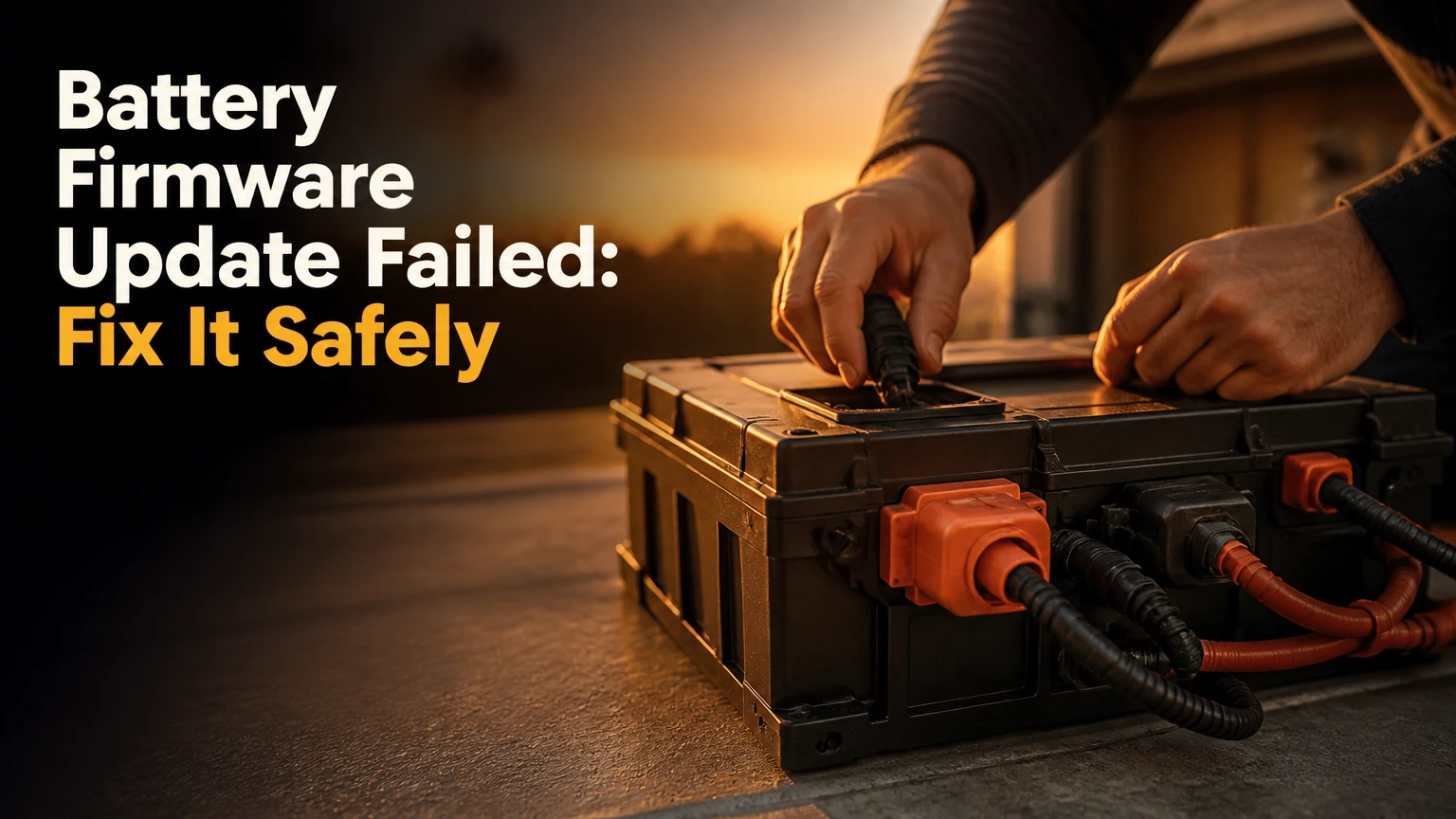
A battery firmware update failed when the battery management system, fuel-gauge controller, charger controller, or device software could not complete a valid firmware transaction. Start with power and physical-safety checks, then retry only the manufacturer’s matching recovery package; do not open a swollen or sealed lithium-ion battery, because firmware tools cannot repair physical cell damage.
Key Facts at a Glance
- A failed battery update does not always mean the battery is permanently bricked; a driver error, weak charger, interrupted connection, or calibration fault can produce similar symptoms.
- AC power must remain connected throughout a firmware write, but the manufacturer’s service documentation determines the required charge level and recovery method.
- Uninstalling Microsoft ACPI-Compliant Control Method Battery refreshes Windows communication, but it does not rewrite damaged BMS firmware.
- Forced flashing, cross-model firmware, and improvised battery-disconnection procedures can permanently disable protection circuitry.
- A swollen, hot, leaking, cracked, or physically damaged lithium-ion battery requires isolation and professional handling, not another update attempt.
- Typical software diagnosis takes 10-30 minutes; specialist battery or EV repair can take several hours to several days.
What Does a Battery Firmware Failure Mean?
A battery firmware failure means a controller rejected, lost, or incompletely stored code used to monitor cells and communicate with the host device. The controller may still protect the cells while reporting no battery, or it may fail to boot and prevent charging altogether.
Modern packs contain more than cells. A smart battery may include a battery management system, fuel gauge, temperature sensors, protection MOSFETs, balancing circuitry, authentication memory, and a communications interface such as SMBus, I2C, CAN, Bluetooth, or a proprietary bus.
The update target is therefore not always the BMS. A laptop package may update embedded controller firmware or BIOS logic, while a smartphone update may alter operating-system battery estimation. A drone application may update the intelligent flight battery through a dock, and an EV update may involve the vehicle gateway, charger, battery controller, or auxiliary 12-volt system.
Why do battery updates fail?
Firmware updates fail when the write process loses stable power, uses an incompatible image, loses communication, or encounters a controller or memory fault. Common triggers include an unstable USB-C charger, a sleeping computer, a closed mobile app, a loose battery terminal, low auxiliary voltage, and a package intended for a different hardware revision.
The old code is not necessarily erased in one operation. Many controllers use a bootloader, checksum, signed image, backup partition, or staged commit process. That design explains why some failed updates recover automatically after a restart, while others require a manufacturer service tool.
Do not infer a permanent brick from a single “update failed” message. Confirm whether the device detects the battery, reports voltage and temperature, accepts charge, and communicates with its controller.
What Should You Check Before Recovery?
Before recovery, confirm physical safety, stable power, exact model identity, and the failure symptom. Set aside 20-30 minutes, use the original or manufacturer-rated charger, and record error codes or LED patterns before changing software.
A typical laptop recovery needs the device, its AC adapter, the exact support page, administrator access, and a second screen or phone for documentation. A removable drone or tool battery may require the approved charging hub rather than a generic charger. An EV usually requires manufacturer diagnostics.
Before-you-start checklist
| Check | Required value or condition | Why it matters | Stop condition |
|---|---|---|---|
| Battery condition | No swelling, smoke, leakage, crack, or unusual heat | Prevents thermal and mechanical hazards | Isolate damaged battery |
| External power | Original charger or OEM-rated adapter | Prevents voltage sag during writing | Charger disconnects or overheats |
| Charge level | OEM threshold, commonly 25-50% | Avoids shutdown during recovery | Tool refuses to proceed |
| Device identity | Exact model, region, battery part number, and revision | Prevents incompatible firmware | Package does not match |
| Network or cable | Stable wired connection where specified | Reduces transfer interruption | Cable or app repeatedly drops |
| Records | Error text, LED sequence, version, and time | Helps service diagnosis | No identifiable failure state |
Lithium-ion safety takes priority over data recovery. The U.S. Consumer Product Safety Commission’s recall guidance commonly tells consumers to “stop using the battery immediately” when a recalled pack presents a fire hazard. That principle also applies to a hot, swollen, leaking, or mechanically damaged pack, even when no recall is known.
How Should You Troubleshoot a Failed Battery Firmware Update?
Troubleshoot in a controlled sequence: preserve power, restart the host, verify the package, refresh software communication, and retry only through an approved recovery path. The most important success factor is preventing a second interruption while the controller writes or verifies firmware.
The sequence below is intentionally conservative. A reset may restore a bootloader without touching stored firmware, whereas a forced flash can make a recoverable battery unserviceable.
Step 1: Capture the failure state
Record the exact error message, battery percentage, charger model, firmware version, device model, and visible light pattern. Take a photograph of LEDs or dashboard warnings before restarting, because the pattern may disappear after power cycling.
Check whether the host sees battery voltage, temperature, serial number, and charging status. On Windows, open Settings, System, Power and battery, then compare the reported percentage with the manufacturer’s diagnostic utility. On Linux, upower -d can show whether the operating system receives battery telemetry, but it cannot repair firmware.
You will know this step worked when the failure is reproducible and documented. A common mistake is treating “battery not detected” as proof of corrupt firmware when a damaged cable, dead charger, or disconnected connector produces the same message.
Step 2: Perform a safe power reset
Shut down the host, disconnect accessories, remove the charger, and hold the power button for 20-30 seconds. Reconnect the approved charger and start the device normally; remove a battery only when the manufacturer explicitly permits user removal.
For a removable smart battery, remove it from the host, wait at least 60 seconds, inspect the contacts, and reinstall it firmly. Do not short terminals, bridge contacts, heat the pack, or hold an undocumented status button for a guessed duration.
You will know the reset worked when normal battery detection returns, the charger begins a controlled charge, or the update utility identifies the pack again. The reset cannot restore erased firmware, repair damaged flash memory, or bypass cryptographic authentication.
Step 3: Stabilize the update environment
Use AC power, disable sleep, close unnecessary applications, and connect the update cable directly rather than through a hub. Keep the host awake, avoid moving a drone battery or cable, and do not run a second firmware installer simultaneously.
For Windows laptops, temporarily pause scheduled restarts and ensure the adapter is firmly seated. For phones, use the vendor’s wired recovery mode when available. For drones and power tools, charge through the approved charger or service dock, not a third-party bench supply.
The success checkpoint is a stable device that remains powered for the entire transfer and verification period. Typical writes last 45-180 seconds, but a package may spend another 5-15 minutes validating the controller.
Step 4: Reinstall only the matching official package
Download firmware from the manufacturer’s support portal or authorized service channel. Match the exact model, battery part number, hardware revision, region, operating-system requirement, and bootloader compatibility before launching the tool.
A rollback is possible only when the vendor publishes an older signed image and permits downgrading. Many current products block rollback with version counters or signature validation. A command such as /force cannot safely override those protections and should not be added unless the manufacturer documents it.
Retry once after the package and power conditions are verified. Stop if the installer fails at the same percentage twice, reports an authentication error, or cannot identify the battery.
Step 5: Refresh the host communication layer
On Windows, open Device Manager, expand Batteries, and uninstall Microsoft ACPI-Compliant Control Method Battery only when the problem is limited to Windows detection. Restarting lets Windows redetect the ACPI device and rebuild the host-side communication path.
This procedure does not flash the battery, clear BMS nonvolatile memory, or repair a failed controller. It is useful when Windows shows an incorrect percentage, stale charging state, or missing ACPI device after an otherwise successful update.
On macOS, use the vendor’s diagnostic or recovery instructions rather than assuming an SMC reset applies to every Apple model. On phones, reinstalling a desktop driver may help USB recovery detection, but it does not fix an authenticated battery-part mismatch.
Step 6: Stop and escalate at the recovery boundary
Contact the manufacturer or a qualified repair center when the battery remains undetected, becomes hot, shows physical damage, fails authentication, or repeatedly stops at the same write stage. Provide the model, serial number, firmware version, error log, charger details, and photographs of indicators.
A technician may use a protected service fixture, CAN or SMBus diagnostics, a signed recovery image, board-level testing, or battery replacement. Do not connect a consumer battery to an improvised programmer, because bypassing protection circuitry can expose cells to uncontrolled charging or discharge.
Which Symptoms Point to Which Fault?
A symptom narrows the fault domain but rarely identifies firmware corruption by itself. The strongest diagnosis combines the symptom with telemetry, timing, temperature, and whether the host recognizes the battery’s serial information.
| Symptom | More likely causes | Safe user check | Likely next action |
|---|---|---|---|
| “No battery detected” | Loose connector, dead pack, ACPI fault, BMS communication loss | Restart and inspect permitted external contacts | OEM diagnostics or service |
| Stuck at 0-1% | Gauge reset, cell imbalance, charger fault, failed capacity data | Test approved charger and observe temperature | Calibration procedure or repair |
| Blinking amber LED | Low charge, adapter fault, firmware state, battery protection trip | Try known-good OEM adapter | Vendor diagnostic code lookup |
| Update stops at one percentage | Incompatible image, flash error, communication timeout | Verify model and cable, retry once | Stop repeated flashing |
| Boot loop after phone update | OS recovery failure, battery authentication, low voltage | Use official wired recovery mode | Authorized service if recovery fails |
| EV “contactor open” alert | Low 12-volt battery, isolation fault, BMS state, HV interlock | Do not access high-voltage components | Roadside or certified EV service |
| Red drone battery error | Terminal contamination, pack lockout, failed app transfer | Inspect and reseat without probing terminals | Approved hub or DJI service |
A calibration error is different from a dead battery. If voltage, temperature, and current telemetry remain plausible while the percentage jumps, the gauge may need an OEM calibration cycle rather than a firmware rewrite.
How Do Recovery Options Differ by Device?
Recovery viability depends on whether the battery is removable, whether the vendor publishes a bootloader recovery path, and whether the pack uses signed authentication. Laptop software recovery is usually more accessible than drone, tool, smartphone, or EV battery repair.
| Device type | Typical update path | User-level recovery | Typical escalation |
|---|---|---|---|
| Windows laptop | BIOS, embedded controller, or vendor utility | Power reset, official reflash, ACPI refresh | BIOS recovery or battery replacement |
| Mac laptop | macOS, SMC-related controller, or service utility | Model-specific power cycle and Apple diagnostics | Apple or authorized service |
| iPhone or Android | OS updater, USB recovery, battery authentication | Official recovery mode and stable cable | Authorized service tools |
| DJI drone | DJI Fly, DJI Assistant, or charging hub | Reseat, charge, app and cable verification | DJI service or pack replacement |
| Makita tool battery | Charger and pack controller | Approved charger, contact inspection | Authorized battery service |
| Tesla, Nissan Leaf, or other EV | OTA gateway, BMS, charger, or vehicle controller | Maintain 12-volt support and follow dashboard instructions | Certified EV or manufacturer service |
Can you reset an internal battery by disconnecting it?
Disconnecting an internal battery is not a universal reset and is unsafe for many sealed devices. A laptop or phone may contain multiple power rails, adhesives, high-current connectors, and components that can be damaged by an accidental short or electrostatic discharge.
Manufacturers sometimes specify a battery-disconnect procedure for trained technicians. Follow that procedure only when the service manual identifies the connector, isolation sequence, wait time, and post-repair calibration. Otherwise, use the device’s documented recovery mode or service channel.
Should You Repair the Battery or Replace It?
Repair is preferable when the pack is physically healthy and the manufacturer provides a supported recovery route. Replacement is usually safer when the controller has failed, the cells are aged or imbalanced, authentication blocks the pack, or service labor approaches the price of a new battery.
| Option | Typical direct cost | Typical time | Appropriate condition |
|---|---|---|---|
| Power reset and official retry | $0 | 10-30 minutes | Device still detects pack |
| Vendor software recovery | $0-$80 | 20-90 minutes | Signed recovery tool exists |
| Laptop battery replacement | $60-$150 | 30-120 minutes | Pack has failed or aged |
| Phone battery service | $70-$120 | 1-3 hours | Authentication or cell fault |
| Drone or tool pack replacement | $80-$250 | Same day to 1 week | Controller lockout or imbalance |
| EV diagnostic or BMS repair | $500-$2,000 typical | 1-5 business days | Certified service required |
Prices vary by country, model, labor rate, shipping, and whether the manufacturer replaces the complete pack. A quoted “BMS repair” may actually mean module replacement, pack balancing, contactor repair, or complete battery replacement.
What is the practical DIY limit?
DIY recovery is reasonable for documented resets, official software, approved chargers, and external connections. DIY recovery is a poor choice for swollen packs, high-voltage EV systems, sealed packs requiring cell access, repeated flash failures, or any procedure that defeats protection electronics.
An honest limitation matters: a successful firmware reflash does not restore lost capacity. Lithium-ion cells lose usable energy through age, heat, high charge voltage, and cycling, so a controller update can correct reporting while leaving short runtime unchanged.
What Common Mistakes Make the Failure Worse?
The most damaging mistake is interrupting a second firmware write after the first attempt has already left the controller in recovery mode. A second failed write can remove the bootloader path that made service recovery possible.
- Using a firmware file for a similar model: Similar chassis names do not prove identical controller hardware. Match the full model and part number.
- Trusting a generic charger: A charger can fit mechanically while failing the required voltage, current, USB-PD profile, or communication handshake.
- Repeating the update many times: Retry once after correcting the environment. Repeated attempts increase diagnostic ambiguity and may exhaust write cycles.
- Opening a swollen pack: Mechanical pressure or a puncture can initiate an internal short. Isolate the device and contact an appropriate battery or hazardous-waste service.
- Assuming a driver reinstall repairs firmware: The ACPI driver is the operating system interface, not the controller’s stored program.
- Using a bench supply on a smart pack: Applied voltage without the required handshake can damage cells, MOSFETs, or protection circuitry.
- Ignoring the 12-volt battery in an EV: A weak auxiliary battery can interrupt vehicle controllers even when the high-voltage pack has adequate charge.
The practitioner rule is simple: software recovery may address software state, but it cannot make an electrically unsafe pack safe.
How Can You Validate a Successful Recovery?
Validate recovery with communication, charging, temperature, and capacity checks rather than trusting a completed progress bar. A successful update should produce a recognized serial number, plausible voltage and temperature, stable charging, and no recurring controller fault.
Run the manufacturer’s battery diagnostic first. Then charge to the documented limit while monitoring for abnormal heat, sudden percentage changes, repeated charge termination, or a new warning light. Use the device normally for one controlled discharge cycle instead of intentionally draining a lithium-ion pack to zero.
| Validation test | Expected result | Warning result | Action |
|---|---|---|---|
| Firmware identification | Intended version and model appear | Blank, mismatched, or old version | Stop and contact service |
| Battery detection | Serial, voltage, and temperature visible | No telemetry or impossible values | Do not reflash repeatedly |
| Charging | Current rises and tapers normally | Immediate cutoff or heating | Disconnect and inspect |
| Percentage behavior | Gradual change during use | Jumps from 40% to 1% | Run OEM calibration or service |
| Runtime | Near the device’s prior condition | Severe capacity loss | Test battery health, consider replacement |
| Error history | No new BMS or charger faults | Repeated lockout or contactor faults | Professional diagnosis |
The first post-recovery charge deserves observation. Do not leave a newly recovered or previously faulted pack unattended overnight until it has completed a normal supervised cycle.
How Do You Prevent Another Firmware Update Failure?
Prevent recurrence by staging updates, verifying power, and preserving a recovery path before writing firmware. Manufacturers and fleet operators should update a small test group first, keep devices docked, and confirm rollback or service support before broad deployment.
For individual users, install optional updates when the device is cool, connected to stable AC power, and not needed immediately. Avoid updating during travel, while using a loose charging cable, or when the battery already reports a temperature or charging fault.
For IT and fleet teams, record model and firmware inventory, test representative hardware revisions, maintain spare devices, and schedule updates in waves. An EV fleet needs verified 12-volt health and a service escalation route, while a drone fleet needs charged packs, approved hubs, and controlled network connectivity.
Microsoft, Apple, DJI, Makita, Tesla, and other manufacturers publish different requirements. Generic thresholds such as 25% or 50% are planning references, not universal rules. The vendor’s package and service instructions take precedence.
FAQ
Can a failed battery update drain my battery?
A failed update can leave a controller in recovery mode, increase standby consumption, or prevent charging, so the displayed percentage may fall while the host remains powered. Disconnect unnecessary loads, use the approved charger, and stop if the pack heats up. A rapidly falling voltage indicates a hardware or protection fault rather than a simple display error.
Will a factory reset fix a battery firmware problem?
A factory reset rarely repairs battery-controller firmware. Factory resets erase user settings or operating-system data, while the BMS, fuel gauge, charger controller, and authentication memory may remain unchanged. Use a factory reset only when the manufacturer’s recovery instructions specifically include it and your data has been backed up.
Can a USB cable cause a battery update to fail?
A USB cable can cause a firmware failure when it has damaged conductors, poor shielding, insufficient data quality, or an unstable connector. Use the manufacturer-specified cable connected directly to the host, avoid hubs, and prevent movement during the write. A cable fault is especially likely when transfer failures occur at inconsistent percentages.
How do I know whether the battery or charger is faulty?
A charger fault is more likely when multiple healthy batteries fail to charge, the adapter disconnects under load, or the host reports no input power. A battery fault is more likely when one pack fails across known-good chargers, reports abnormal temperature, or remains absent from diagnostics. Do not use an unapproved charger to create a comparison test.
Is battery firmware the same as BIOS firmware?
Battery firmware and BIOS firmware are separate software layers, although a laptop vendor may distribute them in one update package. Battery firmware runs on a pack controller or gauge, while BIOS initializes the computer’s hardware. A BIOS recovery can restore system startup without repairing a battery controller, and an ACPI driver reset cannot replace either firmware layer.
What information should I give technical support?
Provide the exact device model, battery part and serial numbers, firmware versions before and after the attempt, error text, LED sequence, charge level, charger model, operating system, and the update log. Include whether the pack is swollen, hot, wet, dropped, or aftermarket. Complete evidence reduces the chance of an unsafe or incompatible recovery instruction.
The Bottom Line
When a battery firmware update failed, first stabilize power and document the symptom, then perform only the manufacturer-approved reset and reflash sequence. The exact keyword describes a recovery problem, not proof that the battery is permanently bricked. Stop after one verified retry, never flash an incompatible image, and escalate immediately for swelling, heat, high-voltage systems, authentication faults, or repeated write failure.